![logo_650INTTERRA_wordmark_Logo_650px.png]](https://helpdocs.intterragroup.com/hs-fs/hubfs/logo_650INTTERRA_wordmark_Logo_650px.png?height=50&name=logo_650INTTERRA_wordmark_Logo_650px.png)
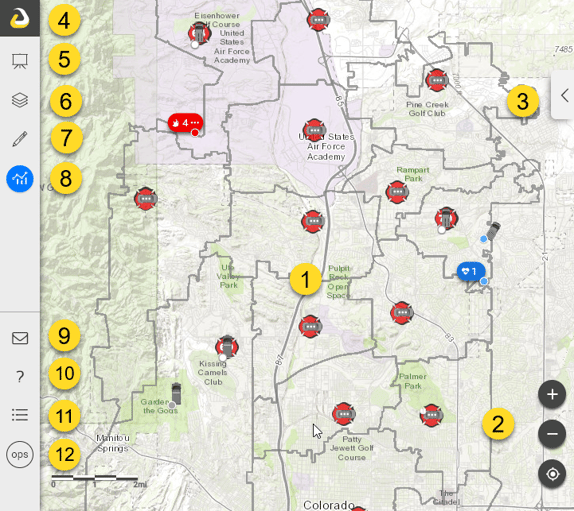
- Map - Provides the common situational picture. Click items on the map to open the Info Panel for more details.
- Navigation - Buttons to zoom in, zoom out, and zoom to your current location.
- Basemap Selector - Opens tool to select a basemap and adjust opacity.
- Hide - Hides or display the menu options.
- Briefing Mode - Displays overview of all active incidents, regionally and nationwide.
- Manage Layers - Turns map layers on/off, manages opacity, and shows sublayers.
- Add Features and Layers - Adds information to the map.
- Tools - Offers tools to measure, list incidents, search for data, view streaming data from aircraft, analyze the situation, etc.
- Support Ticket - Opens form to submit a support ticket.
- Knowledgebase link - Access FAQ and extensive help documents.
- Legend - Launches the legends window for data displayed on the map.
- Workspaces - Identifies and changes workspaces and apps.